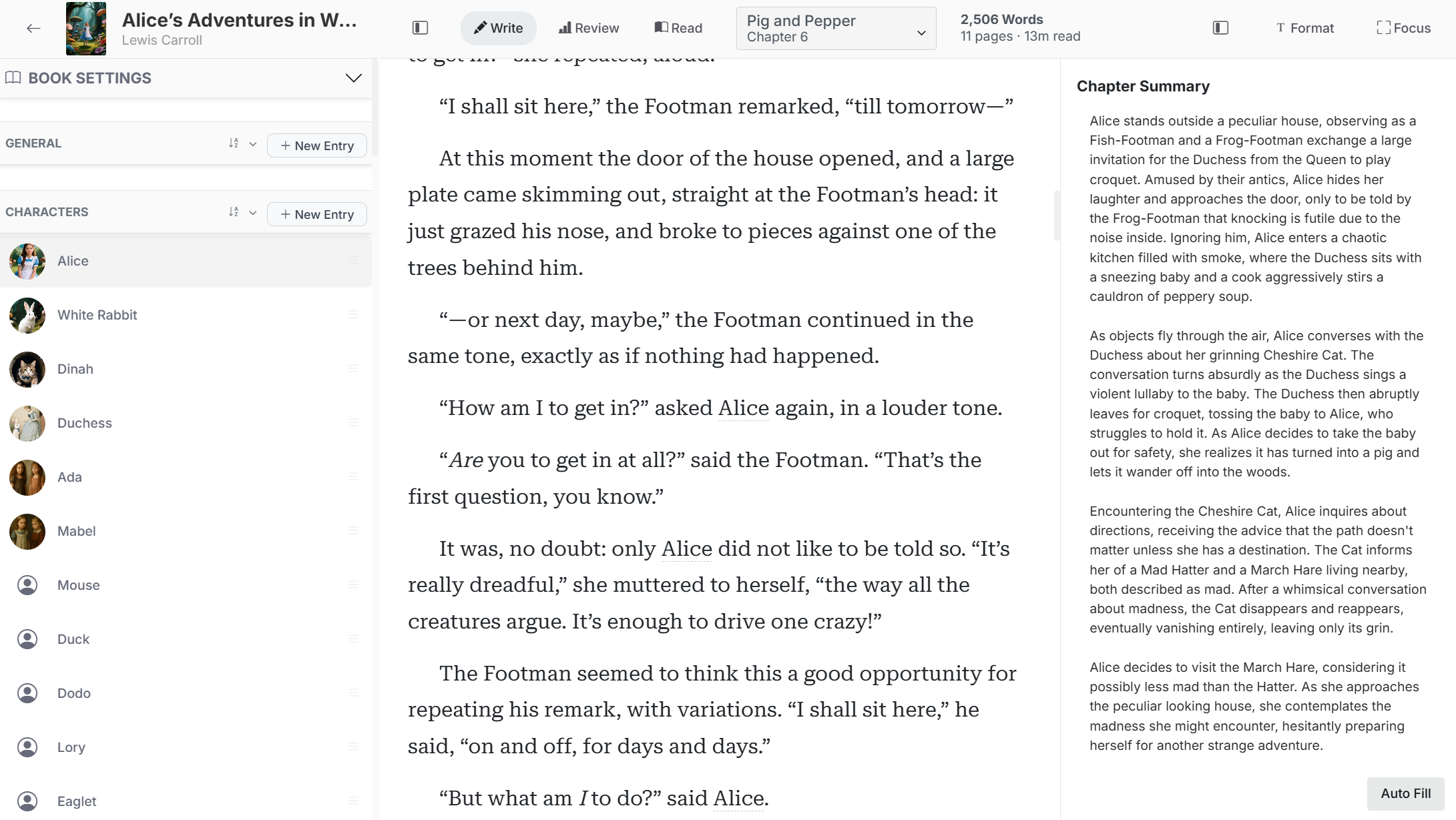
Draft and format prose
Click in the editor and write normally. Selecting text opens the floating menu with Rephrase, bold, italic, underline, strikethrough, alignment, headings, blockquotes, lists, and highlights.
Good to know
- Use highlights as temporary revision markers.
- Chapter word count, estimated pages, and reading time update while you write.
- Use the typography button to change font, text size, line height, indentation, paragraph spacing, page width, and alignment for your writing view.
Navigate and focus
Use the chapter dropdown to open another chapter. The sidebar can be resized or collapsed, and the summary panel can also be hidden. Focus mode expands the writing experience and uses the browser fullscreen feature when permitted.
Use slash commands
At the beginning of a paragraph, type / to open quick commands. Start typing a command name to filter the menu, use the arrow keys to move, Enter to choose, or Escape to close it.
Write inserts an AI writing block at the cursor.
Generate 10 Beats inserts an AI scene-beat generator.
Split Chapter divides the chapter at the cursor.
Horizontal Ruler inserts a scene or section divider.
Image inserts an image-upload block.
Chapter summaries
The right-side summary field stores a short account of the current chapter. Write it yourself or use Generate Summary. Summaries help you remember chapter purpose and provide useful context to some AI planning tools.