The basic workflow
Most books move through the same connected areas:
Create a blank book, choose a story structure, import a DOCX manuscript, or use the AI Book Wizard when it is available.
Write and revise chapters in the manuscript editor.
Keep characters, places, events, objects, groups, and lore in the Codex.
Use Review mode to inspect word count, chapter length, character distribution, and writing activity.
Prepare front matter, end matter, and a table of contents, then export as DOCX or EPUB.
Create your first book
Open My Books and select New Book. Enter a title, then add any useful details such as author, description, genre, tense, language, and cover. You can start with a blank manuscript or select a predefined story structure to create an initial chapter outline.
Good to know
- Only add planning detail that helps you write. You can change book details later.
- Your book can be written entirely by hand. AI features are optional.
- Use Import DOCX instead when you already have a manuscript in Microsoft Word format.
Return to an existing project
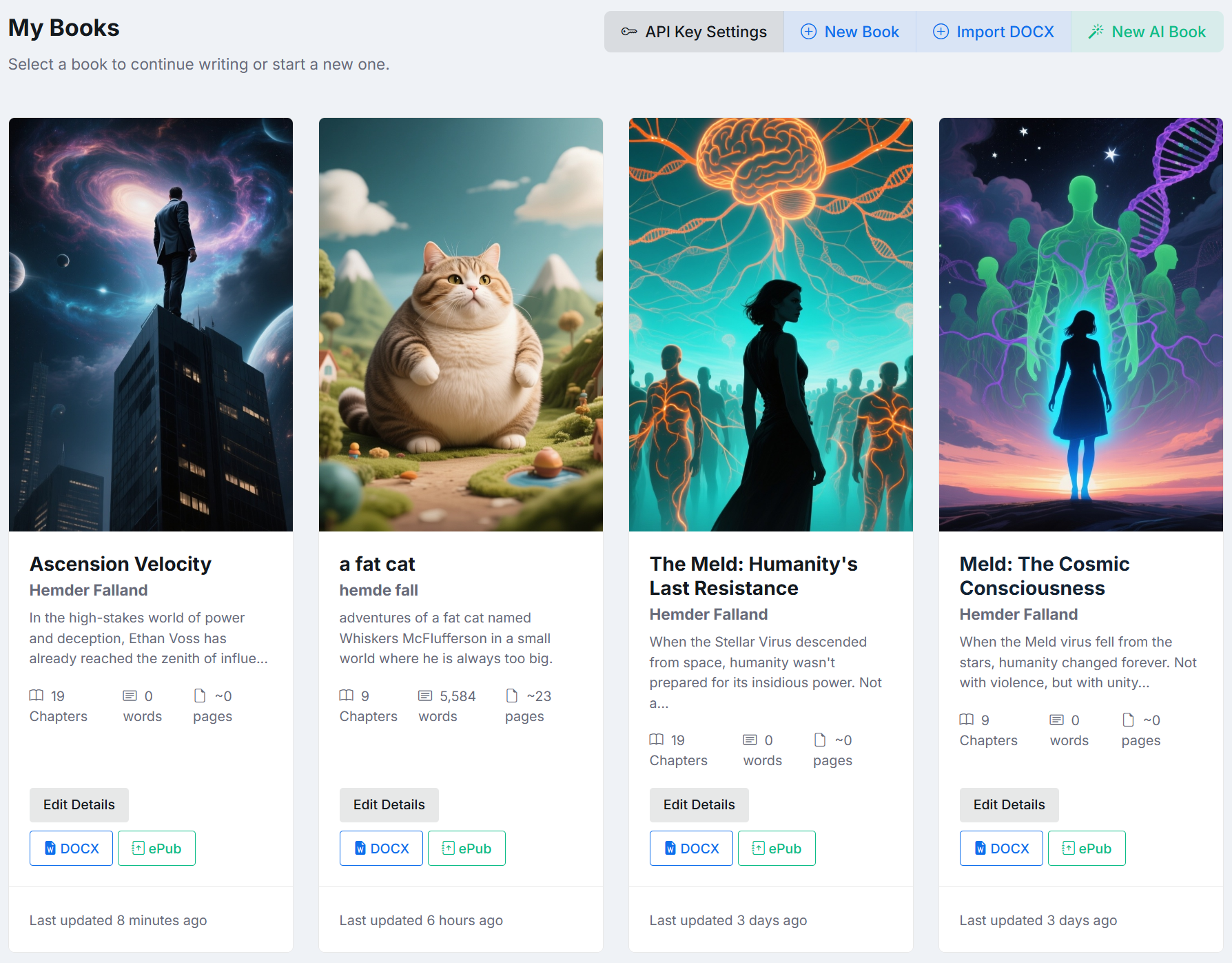
The My Books page shows each cover, title, chapter count, word count, estimated page count, and last update. Select a cover or title to reopen the editor. Use Edit Details to change metadata or the cover.